

Never tag photos manually again.
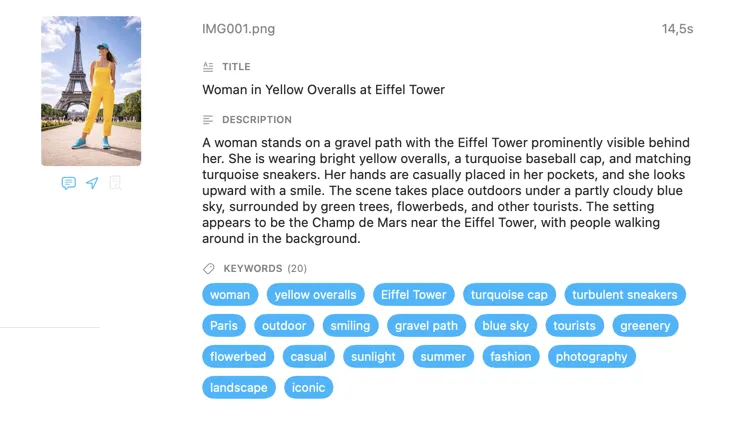
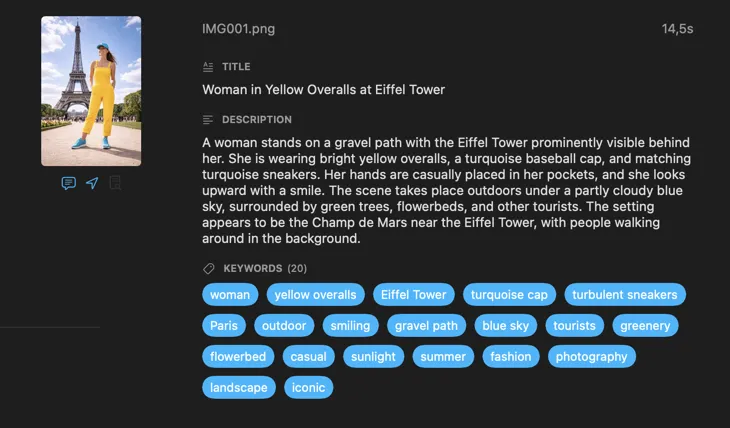
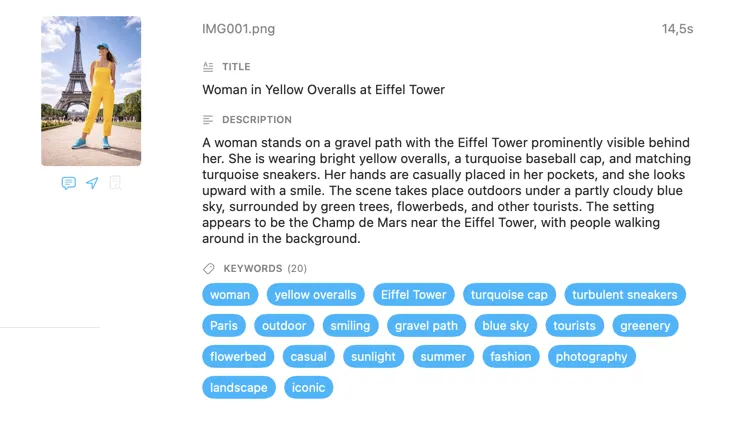
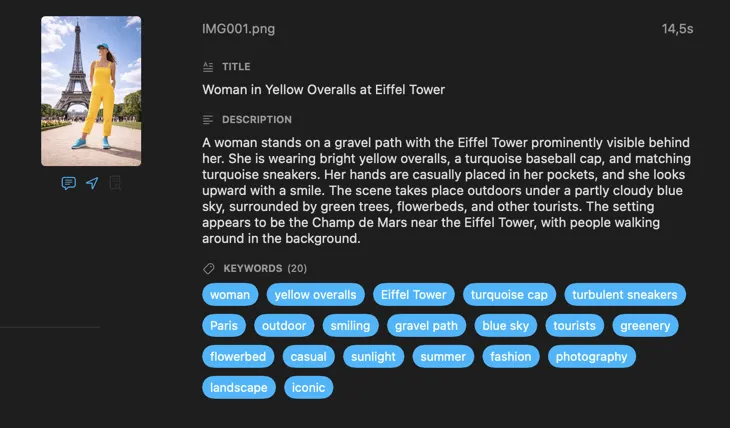
VisionTagger uses on-device AI to generate titles, descriptions, keywords, and more for your images — in bulk, with no uploads and no per-image fees.
Requires Apple Silicon Mac with macOS 26
Who is VisionTagger for?
Designers searching across project assets—tag images by mood, style, subject, and usage to make your asset library instantly searchable.
Researchers and archivists preserving collections—create structured, consistent metadata for datasets, records, and long-term digital preservation.
Smarter results with context you already have
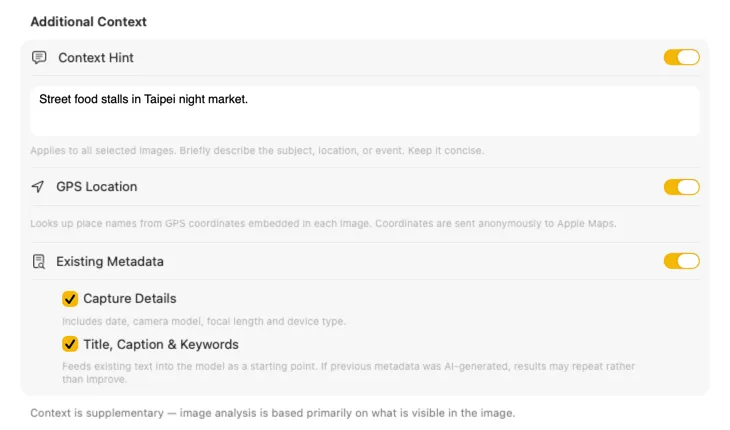
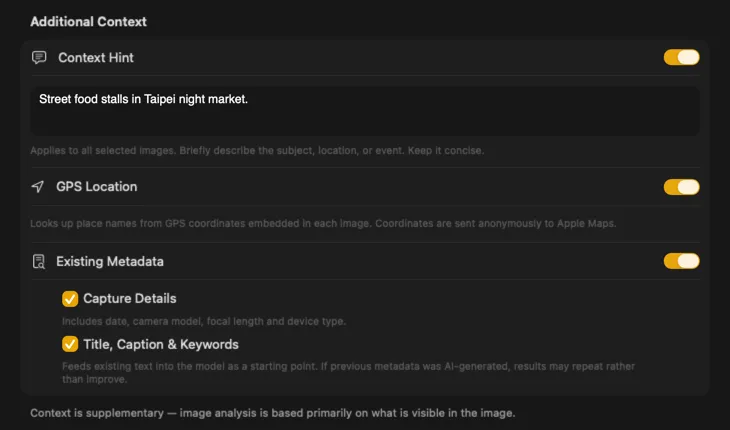
Tell the AI what it’s looking at and the results get dramatically better. Add a Context Hint like “product photos for a vintage furniture store,” turn on GPS Location to include place names from embedded coordinates, or pass along camera and editorial metadata already in your files. Each source is optional and feeds directly into the prompt — so the AI doesn’t have to guess.
Generate exactly the metadata you need
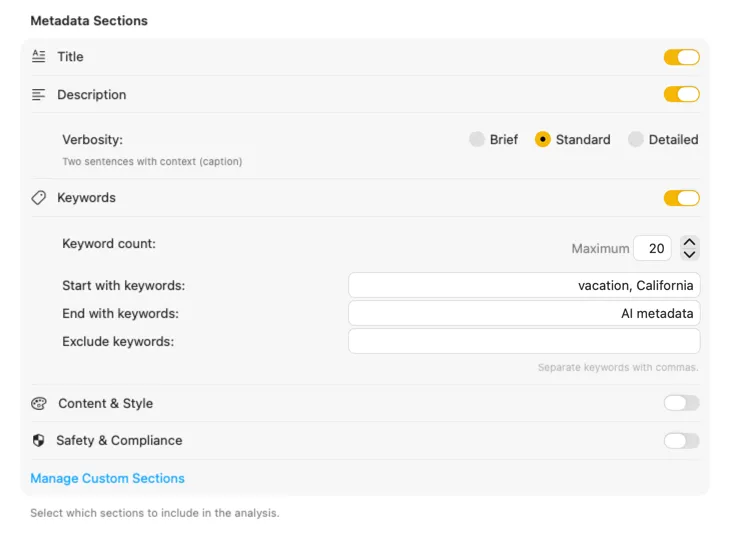
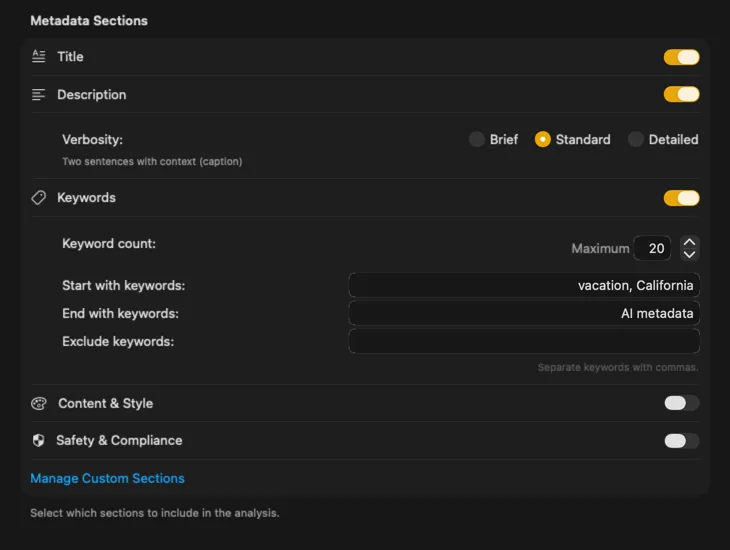
Start with the fields most people need — Title, Description, and Keywords — then go further with Content & Style, Safety & Compliance, or add entirely custom sections with your own fields and prompts. Need output in another language? VisionTagger can automatically translate generated metadata using macOS built-in Translation. The result is structured, consistent metadata across thousands of photos.
Fits right into your workflow
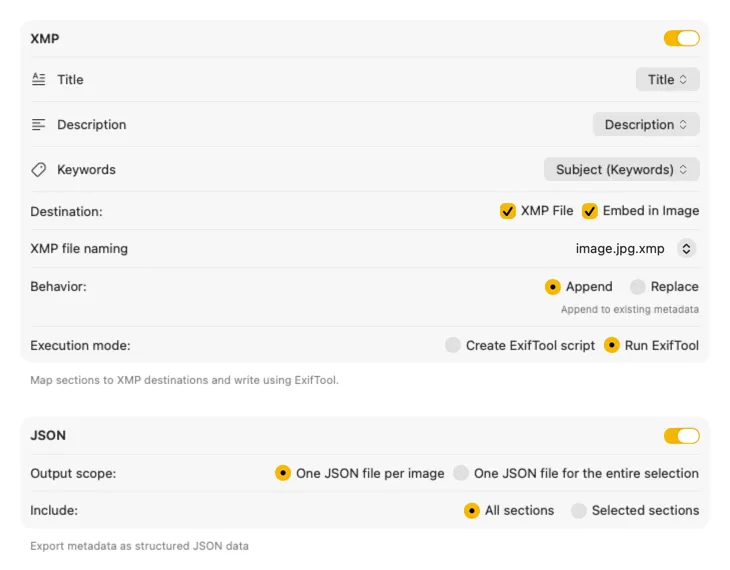
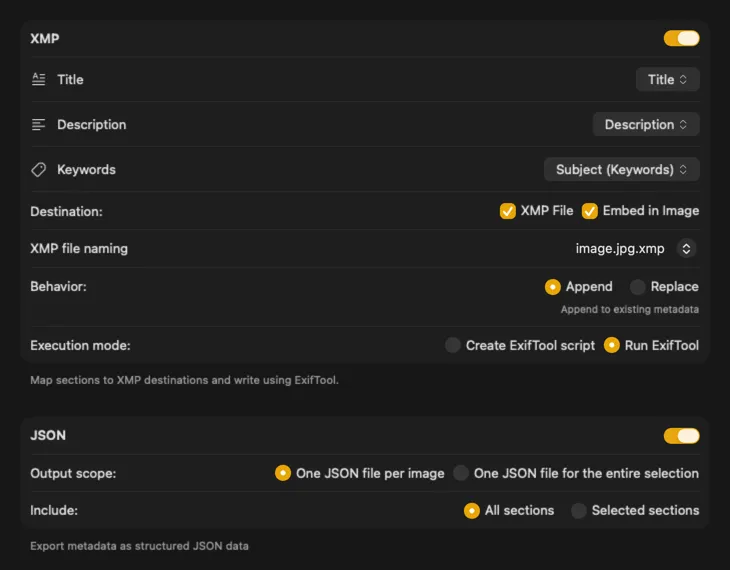
For XMP sidecars and embedded metadata, VisionTagger integrates with ExifTool — an industry-standard, widely trusted utility. Your metadata will appear in apps like Adobe Lightroom, Bridge, Capture One, Photo Mechanic, and any other software that reads XMP. Write back to your Photos Library, export JSON, CSV or TXT per image, or generate a single file for an entire run. Add Finder tags for fast organization in macOS. Select multiple outputs at once and configure them together — so one generation pass can feed every destination you use.
Automate it and forget about it
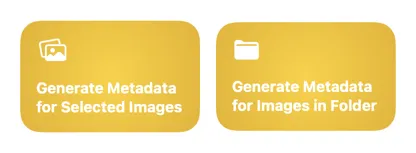
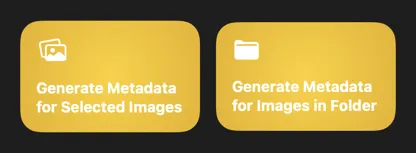
Two Shortcuts actions — one for files in Finder, one for your Photos Library — let you run the full process in the background without opening the app. Set up a folder automation, a Finder Quick Action, or trigger it from the command line. Use the app’s current settings or supply a saved preset for reproducible results every time.
How it works
Watch demo on YouTube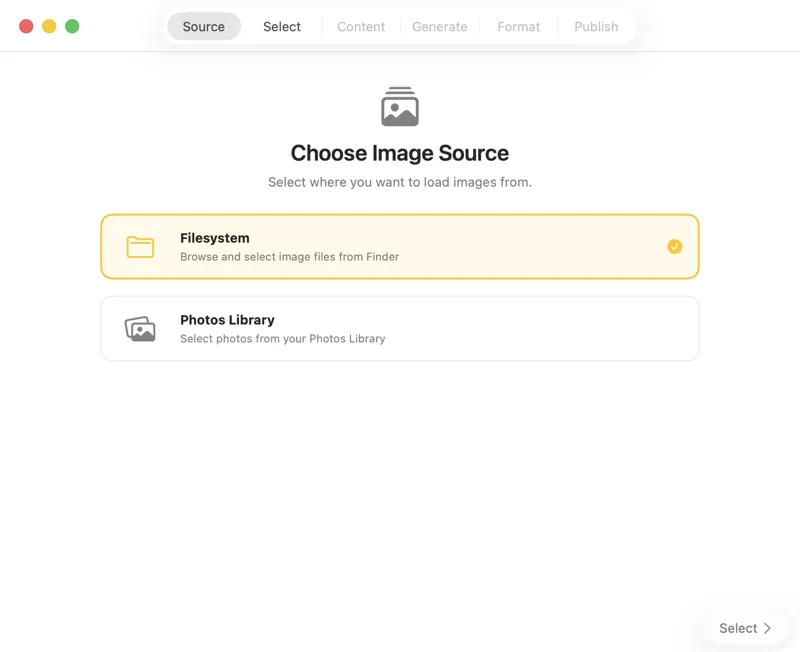
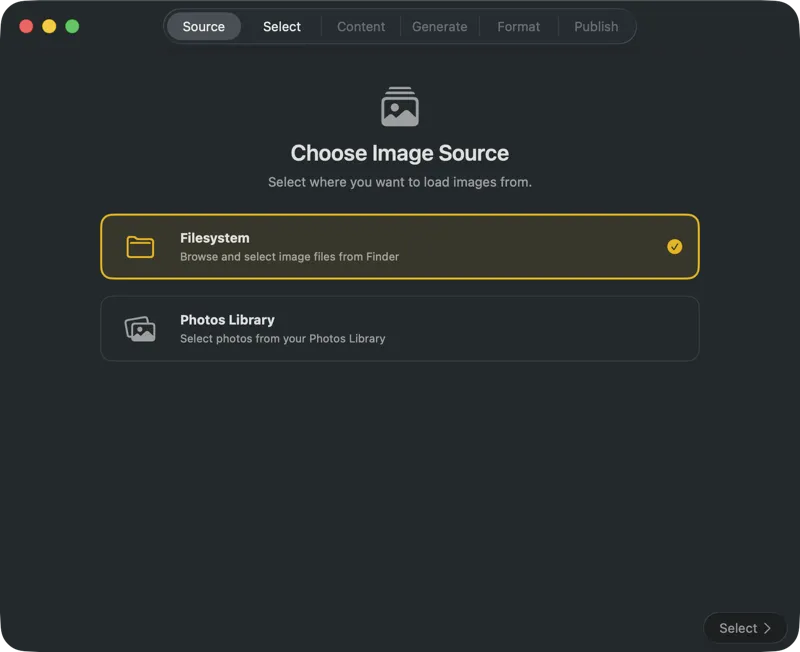
Choose where your images are stored — folders on your Mac or your Photos Library.
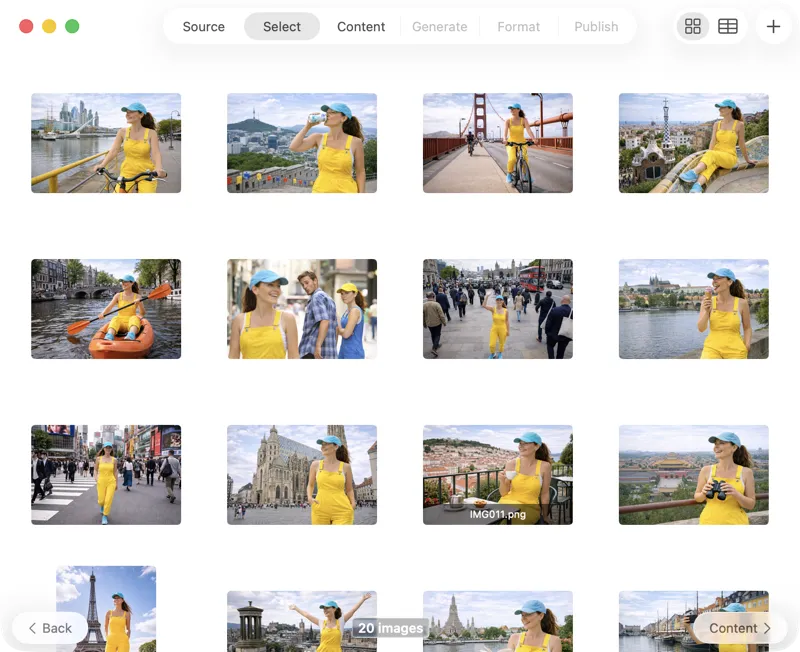
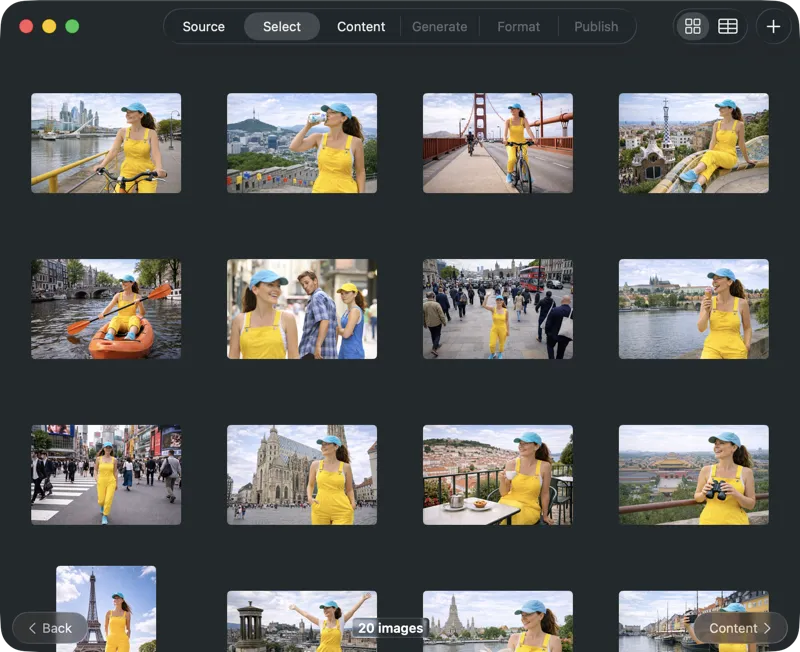
Pick exactly what you want to process. Browse your selection in a grid or table view, add more images via the add button, or drag and drop files into the app to build a batch.
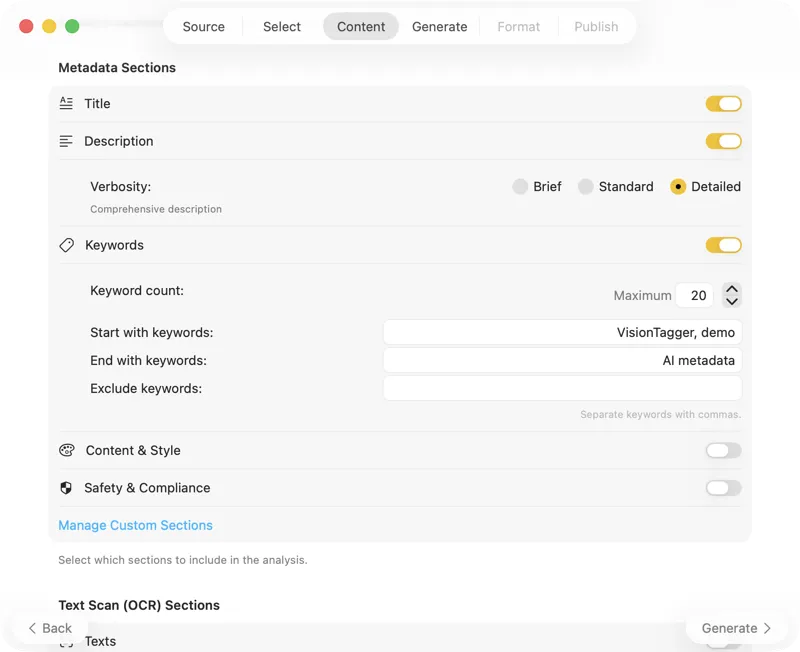
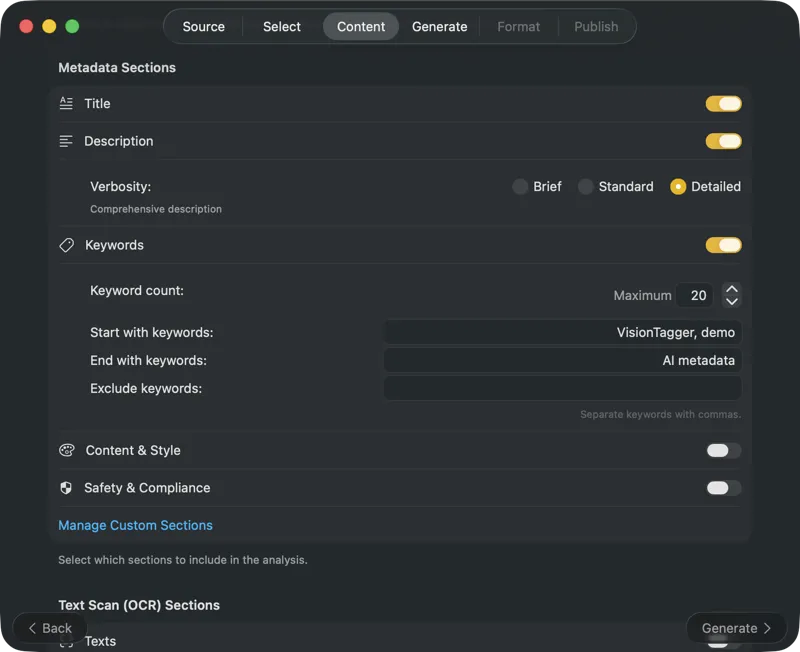
Pick an AI model (download one in-app with a click) and choose what metadata to generate: titles, descriptions, keywords, style tags, safety ratings, or your own custom fields.
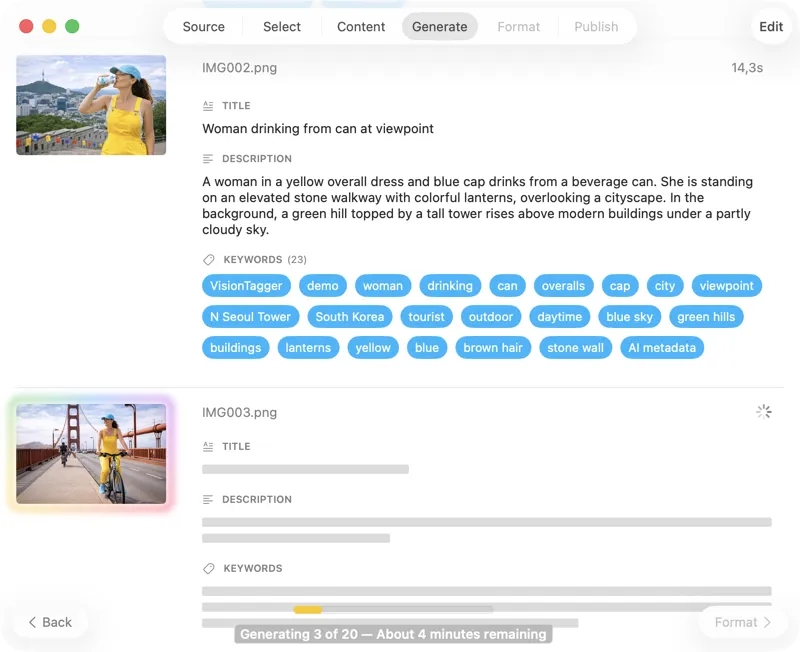
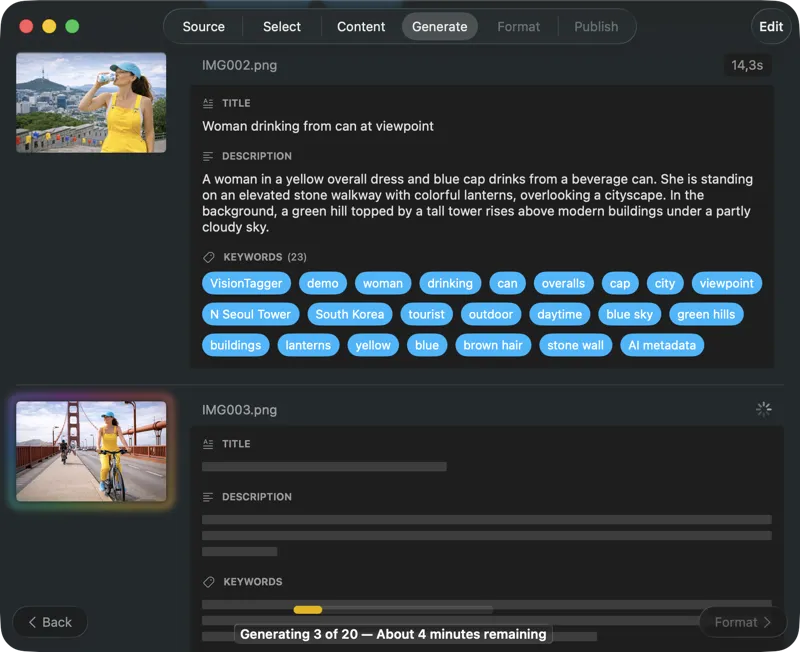
Watch results appear in real time. VisionTagger processes images locally and streams generated metadata into a scrolling list as soon as each item is ready, so you can review and edit outputs while the batch continues.
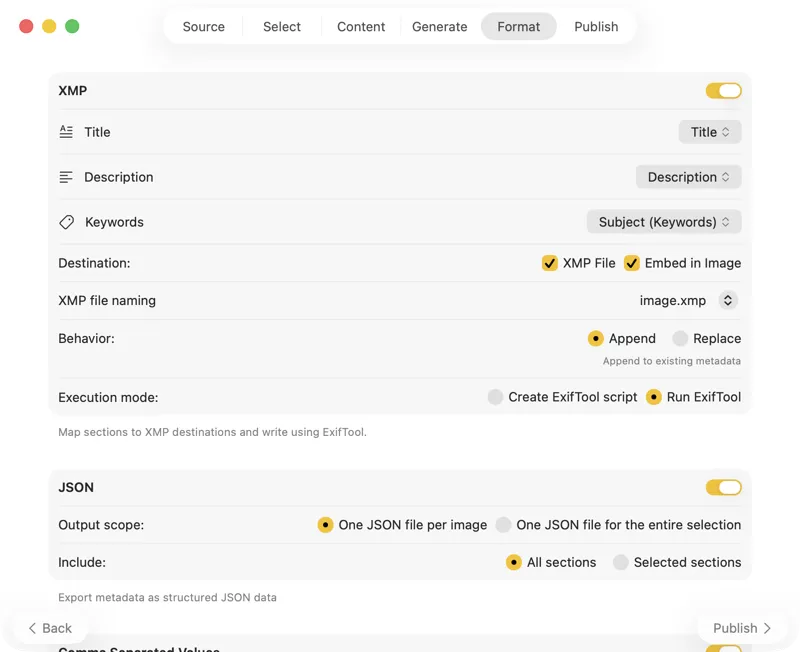
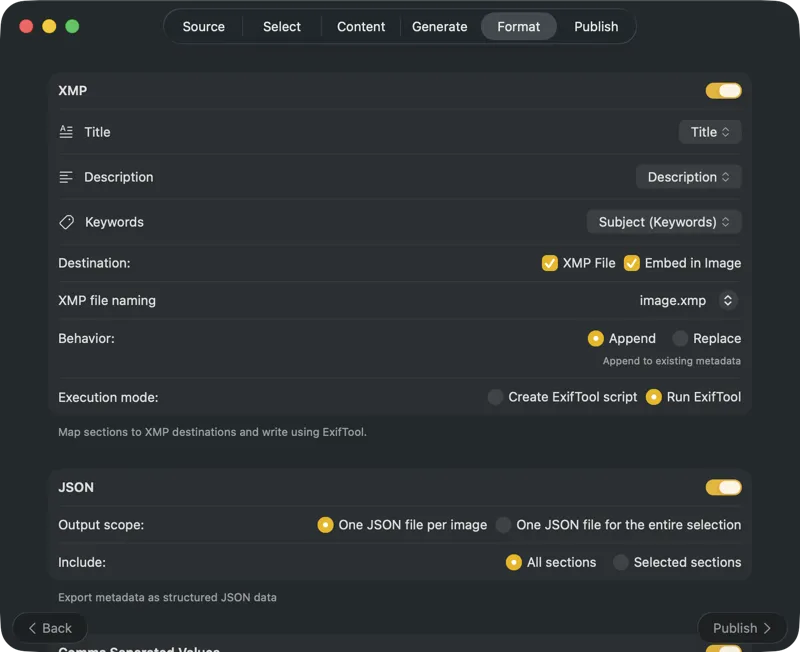
Choose where metadata goes: XMP sidecars for your photo catalog, JSON or CSV for your website pipeline, Finder tags, or write back to Photos. Select multiple outputs at once.
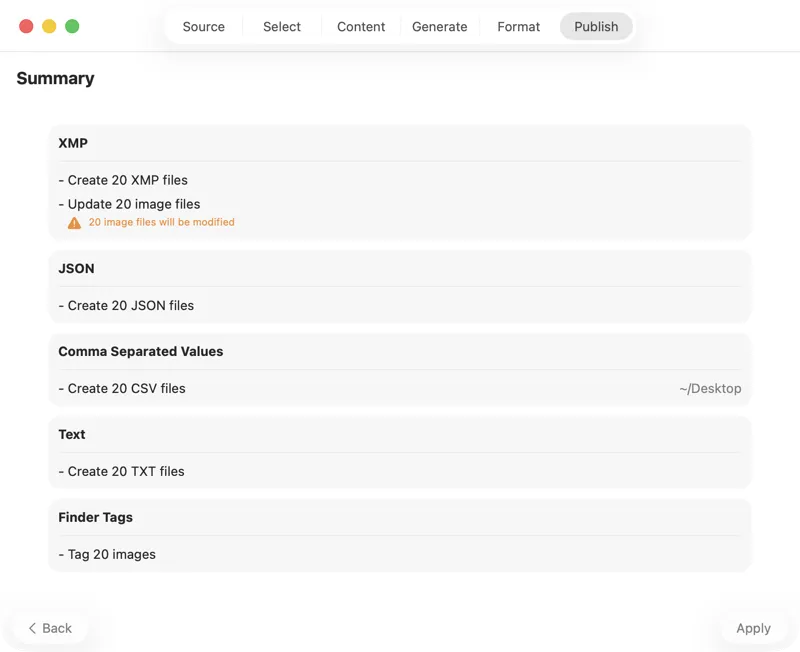
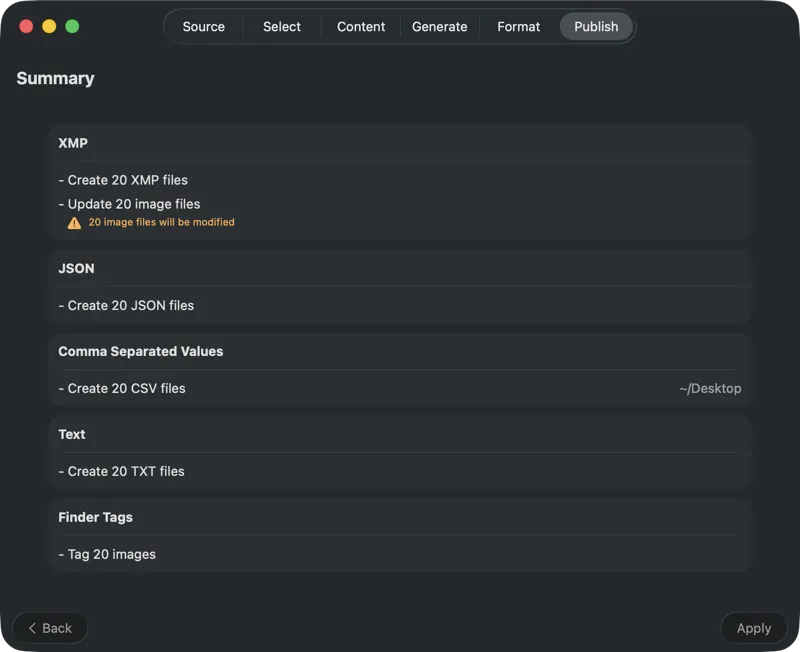
Confirm before anything is written. Review a clear summary of all actions that will be executed, including warnings when existing files or metadata may be overwritten — then publish to apply your selected outputs with confidence.
One-Time Purchase
VAT included (except US & CA)
Secure payment via FastSpring
VisionTagger FAQ
Getting started
How does the free trial work?
How does the free trial work?
The free trial lets you process up to 100 images at no cost, with no time limit. You can explore the full workflow—model selection, built-in sections, custom fields, and export options—before purchasing.
Images & metadata
Which image formats and sources are supported?
Which image formats and sources are supported?
VisionTagger supports common image formats such as JPEG, PNG, TIFF, HEIC, and WebP, as well as various RAW formats including DNG. You can select images from folders on your Mac or directly from your Photos Library.
Can I adjust the description verbosity?
Can I adjust the description verbosity?
Yes. You can choose between three levels: Brief for a single concise sentence suitable for alt text, Standard for two sentences with context ideal for captions, or Detailed for a comprehensive description.
Can I control which keywords are generated?
Can I control which keywords are generated?
Yes. You can set a maximum number of keywords so the model generates up to that many keywords per image. You can also define keywords to always include at the start or end of the list, and specify keywords to exclude. After generation, you can manually reorder, edit, add, or delete keywords for each individual image before exporting.
Can I define custom metadata fields?
Can I define custom metadata fields?
Yes. In addition to built-in sections (Title, Description, Keywords, Content & Style, Safety & Compliance), you can create custom sections and add your own fields. Each field supports a data type (Boolean, Text, or List of Texts) and its own prompt, so you can tailor exactly what the model extracts.
Exports & integrations
Can VisionTagger write back to my Photos Library?
Can VisionTagger write back to my Photos Library?
Yes. VisionTagger can write metadata back to your Photos Library when you choose that output option. You will always see a publish summary before anything is written.
What outputs can VisionTagger create?
What outputs can VisionTagger create?
VisionTagger can export JSON, CSV or TXT per image, or a single JSON/CSV/TXT file for an entire batch. It can also apply Finder tags. For XMP sidecars and embedding metadata into image files, VisionTagger integrates with ExifTool (installed separately).
Can VisionTagger output metadata in languages other than English?
Can VisionTagger output metadata in languages other than English?
Yes. VisionTagger always generates metadata in English for optimal AI model quality. When you select a different output language in Settings, the generated metadata is automatically translated using macOS built-in Translation. Supported languages include Arabic, Chinese, Dutch, French, German, Hindi, Indonesian, Italian, Japanese, Korean, Polish, Portuguese, Russian, Spanish, Thai, Turkish, Ukrainian, and Vietnamese. Language packs must be downloaded in System Settings before translation is available.
Do I need to install ExifTool?
Do I need to install ExifTool?
ExifTool is only required for XMP sidecars and embedding metadata into image files. If you only export JSON/CSV/TXT or apply Finder tags, you do not need ExifTool.
Will VisionTagger overwrite existing files or metadata?
Will VisionTagger overwrite existing files or metadata?
VisionTagger shows a publish summary before writing any outputs and warns you if existing files may be overwritten. You can review the actions and confirm before anything is saved.
Requirements
Do I need to configure anything technical?
Do I need to configure anything technical?
No. Download a model with one click and start processing. VisionTagger ships with sensible defaults. If you want more control, you can adjust parameters like output length in Settings — but most users never need to.
Does VisionTagger require an internet connection?
Does VisionTagger require an internet connection?
VisionTagger runs locally and does not upload your images or generated metadata. An internet connection is only needed to download models in-app and to check for and download app updates.
How fast is it, and what Mac do I need?
How fast is it, and what Mac do I need?
VisionTagger requires Apple Silicon (M1 or later) and runs on macOS Tahoe 26.0 or later. 16 GB of RAM is the minimum; for larger models, 32 GB or more is recommended. Speed depends on your Mac, the selected model, image resolution, and your chosen metadata fields. Smaller models typically run faster; larger models can produce higher-quality results.
How much disk space do models use?
How much disk space do models use?
Model downloads are stored locally. Plan for roughly 4–8 GB per model (varies by model).
Automation
Can I automate VisionTagger?
Can I automate VisionTagger?
Yes. VisionTagger integrates with Apple Shortcuts through two actions: Generate Image Metadata (for files in Finder) and Generate Photo Metadata (for your Photos Library). Both run the full pipeline in the background and export results to your configured destinations. You can use them in the Shortcuts app, Finder Quick Actions, folder automations, the command line, and AppleScript. Optionally supply a settings preset exported from the app for reproducible automation.
AI models
Can VisionTagger recognize specific people or faces?
Can VisionTagger recognize specific people or faces?
No. VisionTagger uses general-purpose pretrained vision models, so it can describe that a person is present and note visible attributes, but it cannot identify or tag specific individuals by name. The models are not trained for facial recognition, and there is no way to teach them to recognize particular people.
Which vision models are included?
Which vision models are included?
VisionTagger includes seven preconfigured vision models: Qwen3-VL 8B Instruct, Qwen3-VL 30B-A3B Instruct, Qwen3-VL 32B Instruct, Qwen2.5-VL 7B Instruct, Gemma 3 4B IT, InternVL3 8B Instruct, and Pixtral 12B. Smaller models generally run faster, while larger models may produce higher-detail output but require more memory, depending on your Mac and chosen settings. Use the trial to compare models and tweak parameters until the results match your workflow and preferred level of detail.
Can I use my own models?
Can I use my own models?
Yes. If you have a GGUF-compatible vision model and its matching projector file (also GGUF), you can link them in VisionTagger and use them like the built-in options. You are responsible for ensuring your use of third-party models complies with their licenses and terms.
Can I tune the model parameters?
Can I tune the model parameters?
Yes. In Settings you can adjust generation parameters such as temperature, max tokens, context length, top-P, and top-K using sliders. This helps you balance creativity versus consistency and control output length and detail.
Privacy
How does VisionTagger compare to cloud keywording services?
How does VisionTagger compare to cloud keywording services?
Most cloud keywording services charge per image and require uploading your photos to their servers. VisionTagger is a one-time purchase with no per-image fees — process as many images as you want. Your photos never leave your Mac, and metadata is written directly to XMP sidecars and your files instead of a CSV export you have to import manually.
Does the GPS Location feature send my data anywhere?
Does the GPS Location feature send my data anywhere?
GPS coordinates embedded in your images are sent anonymously to Apple Maps to look up place names. Only the coordinates are sent — Apple does not collect personal data associated with your Maps usage. The GPS Location feature is disabled by default.
Does the translation feature send data to Apple?
Does the translation feature send data to Apple?
By default, macOS may use Apple’s online translation services for improved accuracy. To ensure all translation happens entirely on your Mac with no data leaving the device, enable “On-Device Mode” in System Settings > Translation.
Does VisionTagger collect any usage data or analytics?
Does VisionTagger collect any usage data or analytics?
No. VisionTagger does not include analytics or telemetry, and it does not upload your data. Licensing activation and update checks involve network requests as needed for those functions.